

Connector Architecture
A shared connector model: adding a system means adding a connector.
Move data between different systems through one controlled path
Salesforce EDI connects systems through connectors: read from Salesforce, local databases, or Excel, review the data in a local staging store, then write it to the target system through mapping. Connectors for Salesforce, four databases, and Excel are built in, and new connectors can extend the product to ERP, CRM, and other systems.
A shared connector model: adding a system means adding a connector.
Review data in a local or intranet staging store without an additional cloud relay.
Configure objects, fields, conversion tables, and write modes without code.
Every read, write, and export is recorded, with failed rows ready to locate, export, and retry.
Salesforce EDI is a desktop data integration client built by Trixpro. It connects different kinds of systems through connectors: system connectors can read and write, while data source connectors are read-only. Connectors for Salesforce, MySQL, PostgreSQL, Oracle, SQL Server, and Excel are built in. Salesforce is one of the system connectors, not the boundary of the product. Connections, read configurations, mappings, schedules, and task records are managed in one client—no code and no additional middleware.
Every exchange has two steps. A read copies source data into the staging store as a complete batch. A write transforms that batch according to a mapping and sends it to the target system. The staging store keeps source values as they are, so one batch can feed different mappings and objects, and a mapping change does not require another read.
Configure a connector for each kind of system, verify access, and load object and field structures.
Read the selected fields with filters and an incremental watermark, and store a complete batch in the staging store.
Map target fields to source fields, fixed values, or conversion tables, with a test run before execution.
Write with the target system's mode, record every row result, and retry failed rows.
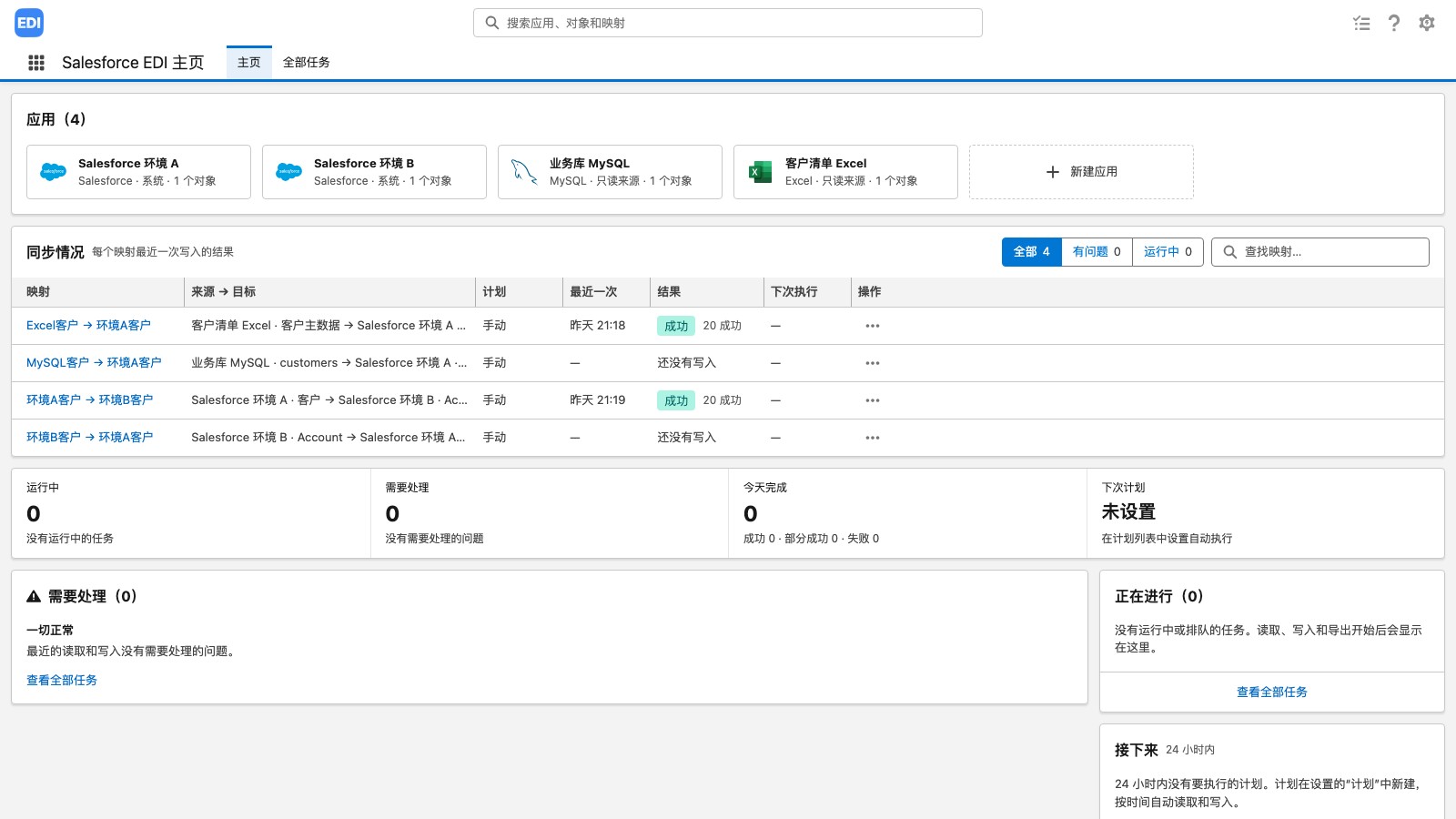
Salesforce, databases, and Excel each connect through their own connector: system connectors support reads and writes, while database and Excel connectors are read-only. Each connection is managed independently, multiple connections can coexist, and a new system type requires only a new connector.
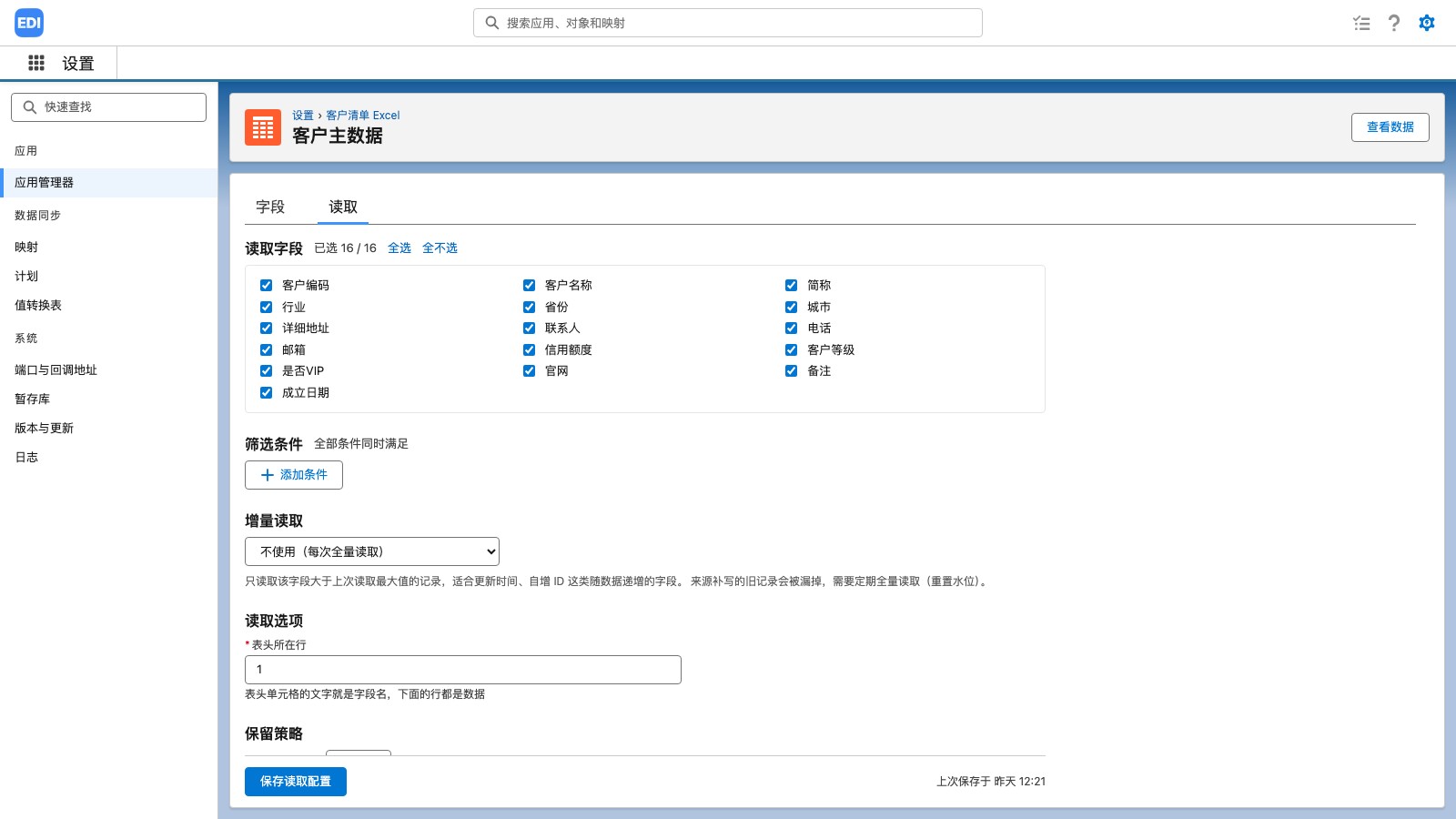
Choose fields, combine filters, and set an incremental field before reading so only the data you need moves. Reads run in the background and produce a batch only after they complete successfully. Browse batches in a local or intranet staging store, inspect complete row details, or export the batch to Excel for business review.
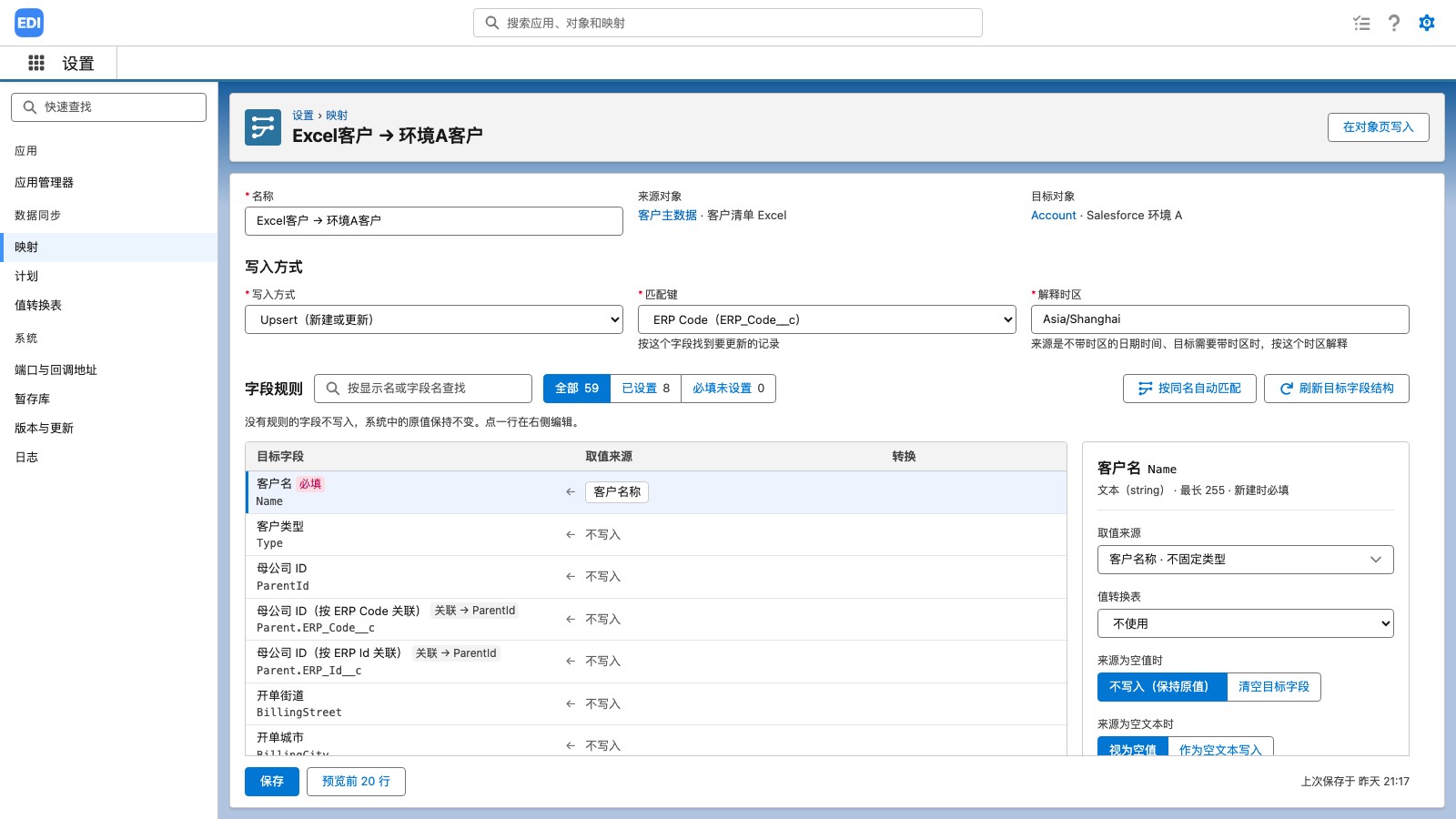
Create a mapping for a target object, choose Insert, Update, or Upsert with a match key, then set each target field to a source field, a fixed value, or no write. Use conversion tables when codes differ across systems. Type conversion never truncates or rounds; values that cannot convert are reported with their exact location.
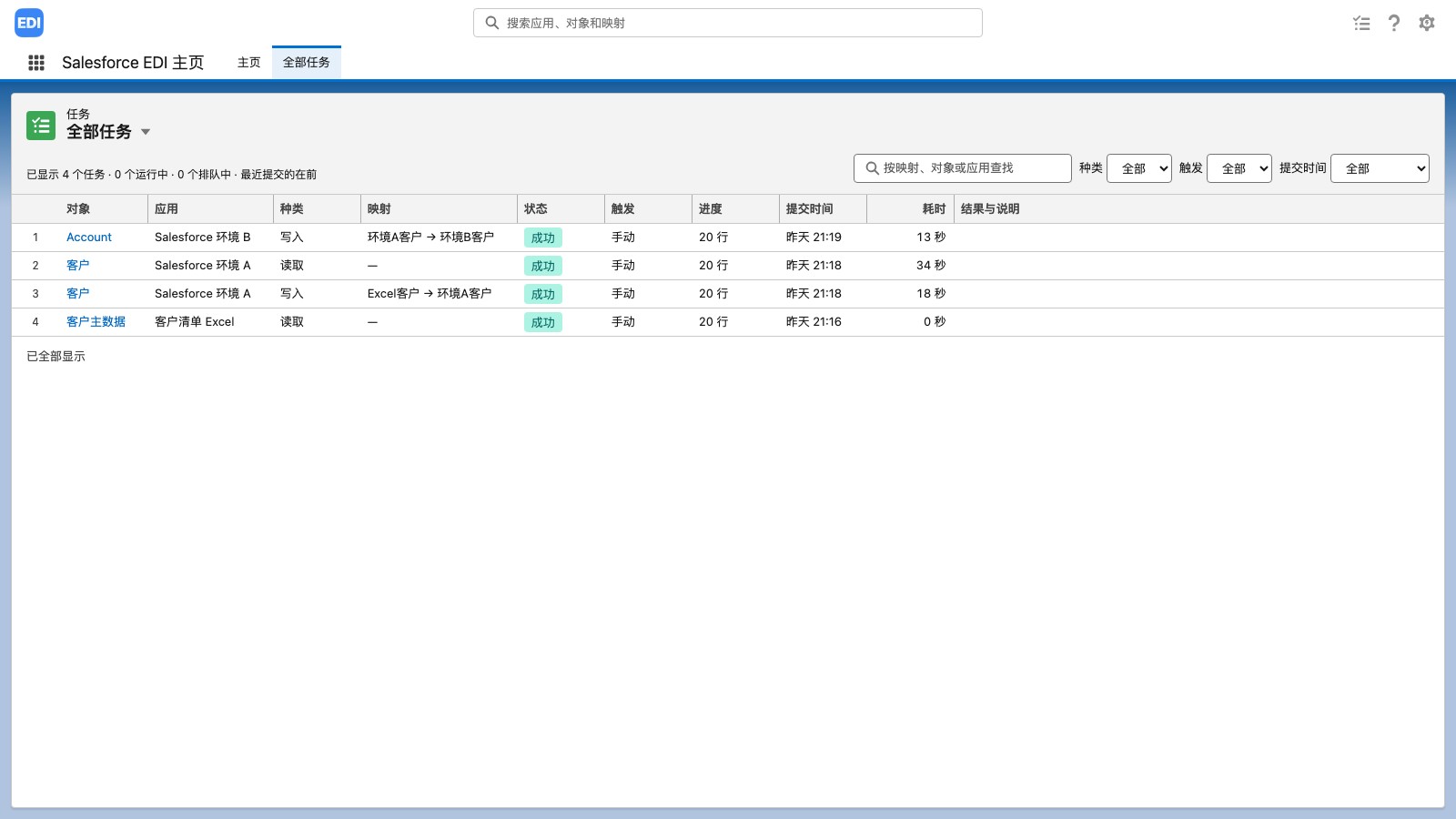
Reads, writes, and exports run as background tasks that continue after the browser closes. Schedules support daily, weekly, monthly, or custom cron timing, and can trigger writes after a successful read. Every write keeps row-level results, failure reasons, validation errors, and a mapping snapshot so failed rows can be corrected and retried.
Salesforce EDI connects any business system through connectors, and turns reads, staging, mapping, and task records into a local data foundation; local AI runs on that foundation, keeping data on the machine or inside the intranet and delivering local intelligence.
Salesforce, databases, Excel, and any system you connect with a connector, covering read/write system connectors and read-only source connectors.
 Salesforce
 MySQL
 PostgreSQL
 Oracle
 SQL Server
 ExcelCustom connector
Authentication, object discovery, type mapping, and read/write protocols are encapsulated; adding a system means adding a connector.
Staging, mapping, tasks, and results form a unified data foundation for a local data center.
AI runs on the local data foundation, keeping data on the machine or inside the intranet and delivering local intelligence.
Salesforce EDI is a desktop systems integration tool. Database and Excel connectors are read-only; the system connector (Salesforce) supports Insert, Update, and Upsert, not record deletion. Data stays on the machine or inside the intranet.
Follow the workflow from connectors and reads through mapping, writes, and task results. The walkthrough is narrated in Chinese.
Review built-in Salesforce, database, and Excel connectors and their mappings from one home page.
The questions we hear most about positioning, data paths, read and write boundaries, and how the client runs.
It stages data from different systems in a local store, writes it to target systems through mapping, and keeps every run traceable with tasks, schedules, and row-level results. Connectors for Salesforce, MySQL, PostgreSQL, Oracle, SQL Server, and Excel are built in.
No. The client and local service run on your computer, and the local service listens only on 127.0.0.1. Data moves directly from the source into a local or intranet staging store, then into the target system. Trixpro does not provide an additional data relay service.
No. The database and Excel connectors are read-only and provide no write capability; the system connector (Salesforce) supports Insert, Update, and Upsert, but not record deletion. When joins or calculated fields are needed, ask a database administrator to create a view—custom SQL queries are not supported.
Yes. Salesforce EDI uses a connector model: each connector encapsulates one kind of system's authentication, object discovery, type mapping, and read or write behavior. Salesforce, MySQL, PostgreSQL, Oracle, SQL Server, and Excel connectors are built in. Adding ERP, CRM, finance, or other systems requires only the corresponding connector; staging, mapping, schedules, and task records stay unchanged.
The staging store can use local SQLite or MySQL 8.0 or later. A read of one million rows with 50 fields takes about 1 GB in a local staging store, completes in roughly ten seconds from an intranet MySQL database, and exports to an Excel file of about 400 MB in around half a minute. Writes above 2,000 rows through the system connector use the Salesforce Bulk API and are subject to daily API and Bulk limits.
Yes. Schedules run only while Salesforce EDI is running; the browser can stay closed. Keep the client in the system tray and enable launch at login if needed. If the computer sleeps or the client exits, the most recent missed run within 24 hours is caught up once after startup, and catch-up can be disabled.
The client supports Windows 11 (64-bit) and macOS (Apple silicon). Built-in connectors cover Salesforce (a read-write system connector supporting production, sandbox, and custom domains), MySQL, PostgreSQL, SQL Server, Oracle (with Oracle Instant Client installed), and .xlsx and .xls files. Database connections are limited to intranet networks, including VPN; public database endpoints, SSH tunnels, and proxies are not supported. Connectors can be extended on demand.
Describe your data sources, target systems, and the frequency you need, and we will assess the right approach for your environment.